
How to Add a Logo in Google Forms (Step-by-Step Guide)


Why Add a Logo to Your Form?
A logo helps you:
- Reinforce brand recognition
- Increase trust and credibility
- Make forms look more polished and professional
- Align forms with your website or marketing campaigns
For businesses and creators, a form without branding often feels generic and less engaging.
How to Add a Logo in Google Forms
Google Forms allows you to add a logo, but the process is manual and limited.
Step 1: Open Your Google Form
Go to Google Forms and open an existing form or create a new one.
Step 2: Click the Palette (Customize Theme)
At the top-right corner, click the palette icon (Customize theme).
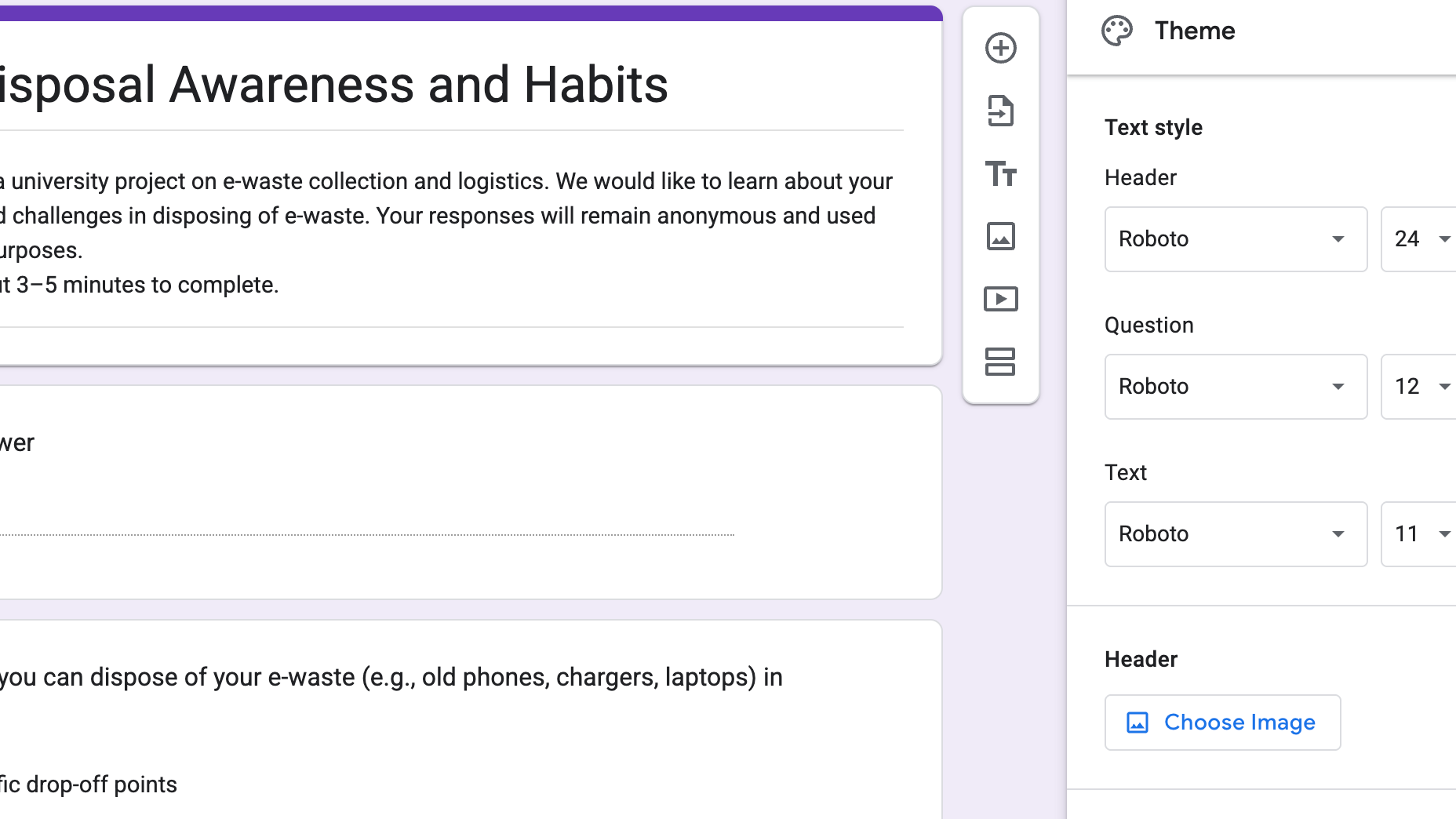
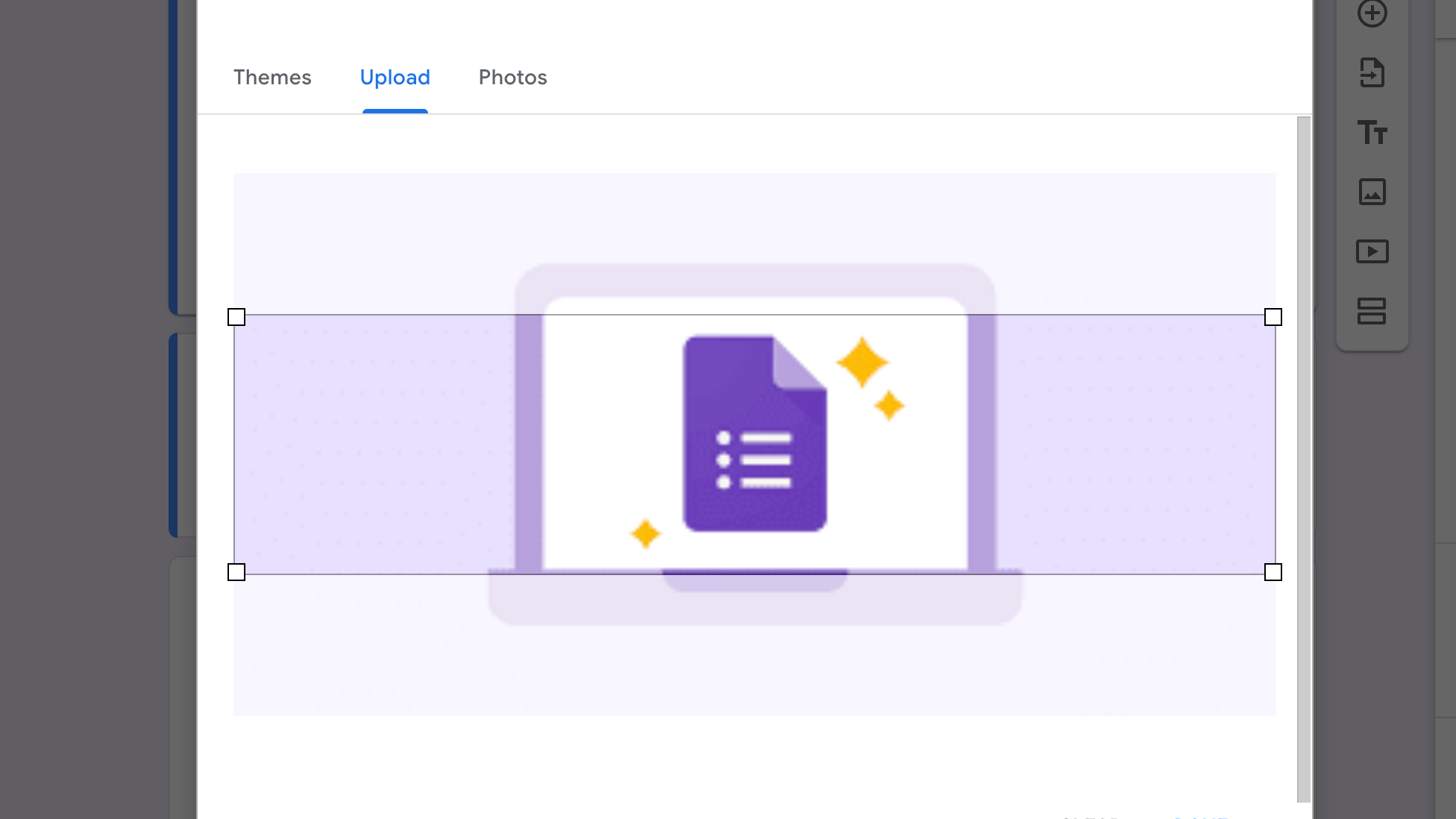
Step 3: Add a Header Image (Logo)
Under Header, click Choose image.
You can:
- Upload an image from your computer
- Select from Google’s image library
- Choose an image from Google Drive
This header image is where your logo will appear.
Step 4: Adjust the Theme (Optional)
You can also:
- Change theme color
- Select font styles
But note: these options are very limited.
Limitations of Adding a Logo in Google Forms
While Google Forms works for basic needs, branding comes with several drawbacks:
- ❌ You must upload the logo manually
- ❌ No direct way to use a logo URL
- ❌ Limited control over logo size and positioning
- ❌ No dynamic branding for different forms
- ❌ Google branding still feels dominant
If you’re managing multiple forms or working with clients, this quickly becomes inefficient.
A Faster Way: Add a Logo Using Dashform
If you want a simpler and more flexible solution, Dashform makes branding effortless.
Instead of uploading images every time:
👉 Just paste your logo URL. That’s it.
How Logo Branding Works in Dashform
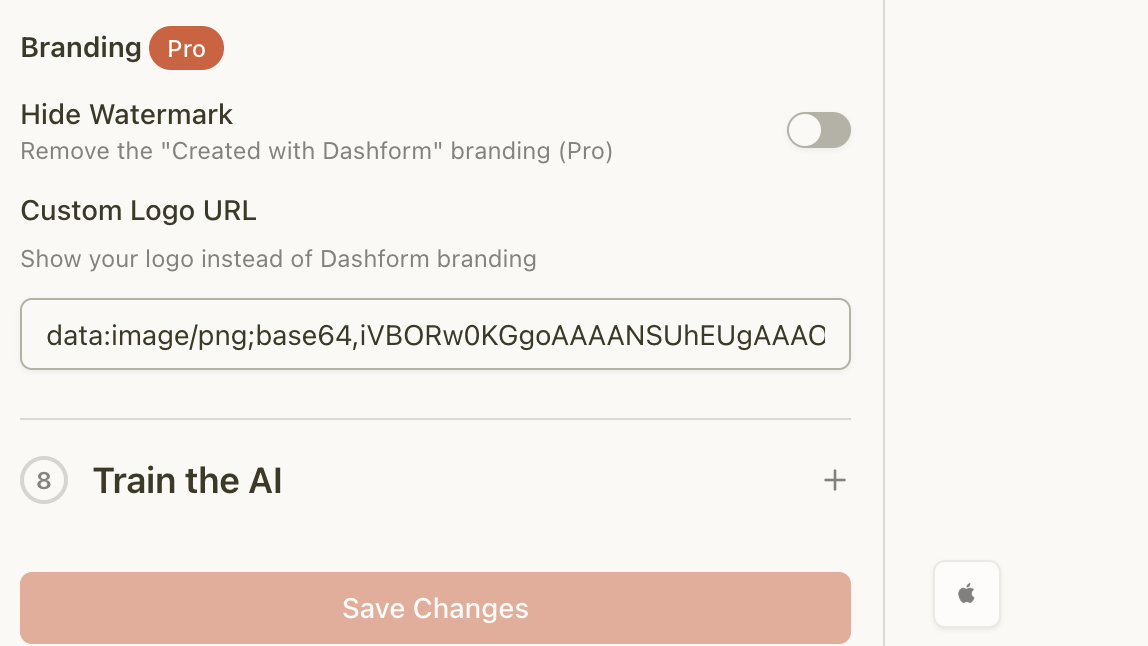
- Paste your Logo URL directly into the branding settings
- Your logo appears instantly on the form
- Update the logo anytime by changing the URL
- No re-uploading, no resizing headaches
This is especially useful for:
- SaaS products
- Agencies managing multiple clients
- Marketers running many campaigns
- Teams that update branding frequently
Customize the Entire Form Background to Match Your Brand
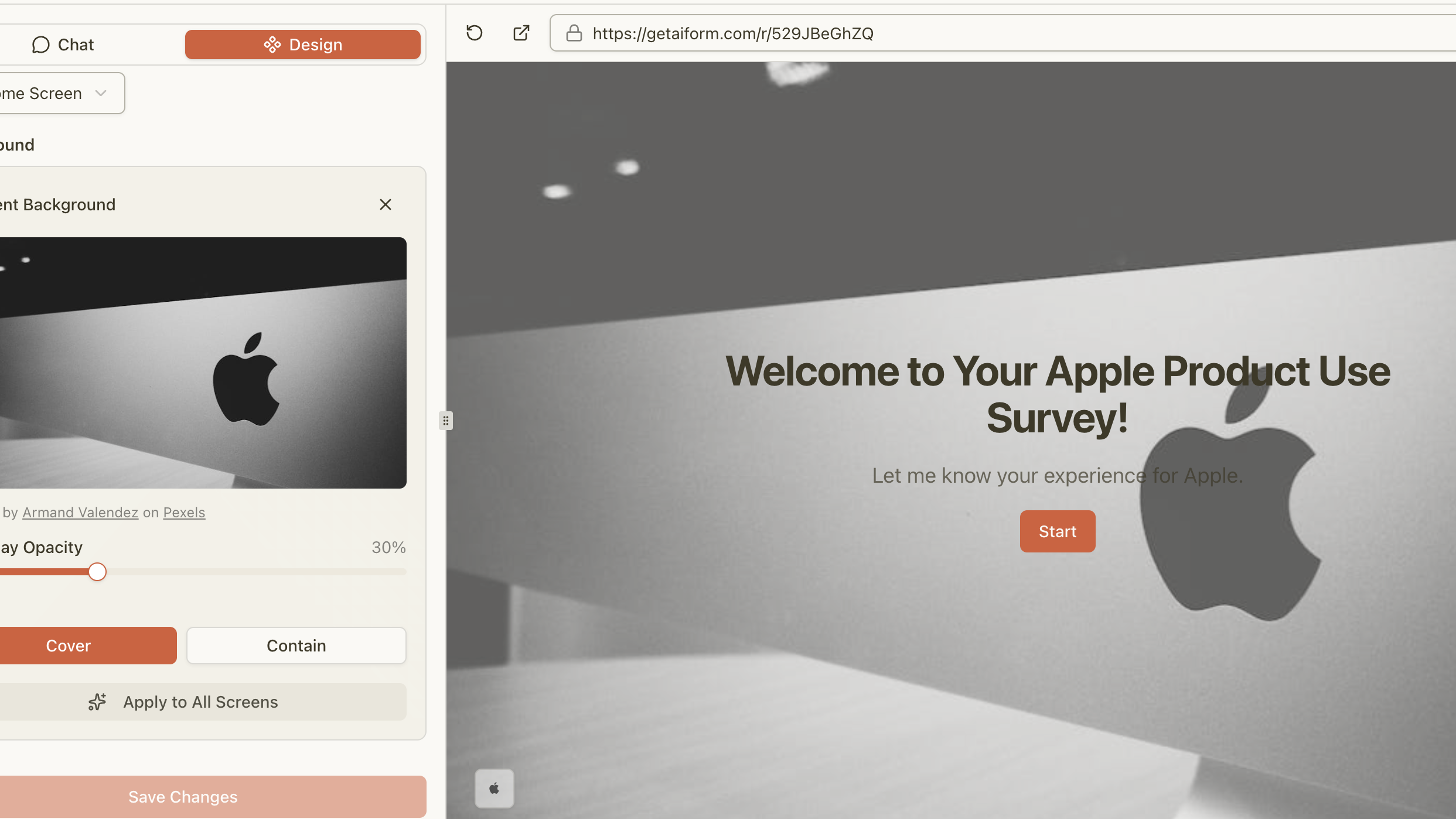
Branding doesn’t stop at your logo. With Dashform, you can also customize the entire survey background image to fully match your brand identity.
Instead of a plain white form, you can:
- Set a custom background image for the whole survey
- Match your form with your website, campaign, or product visuals
- Create a more immersive, on-brand experience for respondents
| Feature | Google Forms | Dashform AI Form |
| Add logo via URL | ❌ No | ✅ Yes |
| Upload required | ✅ Yes | ❌ No |
| Branding flexibility | Limited | High |
| Modern form design | Basic | AI-native & customizable |
| Built for scaling | ❌ No | ✅ Yes |
With Dashform AI Form, adding a logo is as easy as pasting a logo URL no uploads, no friction, no wasted time.
If you’re building modern forms and surveys, branding shouldn’t slow you down.
Related Reading
The Real Problem With Forms and How Dashform AI Form Changes Everything
What Is AI Form? A Complete Introduction
Survey vs. Questionnaire: What's the Difference?