
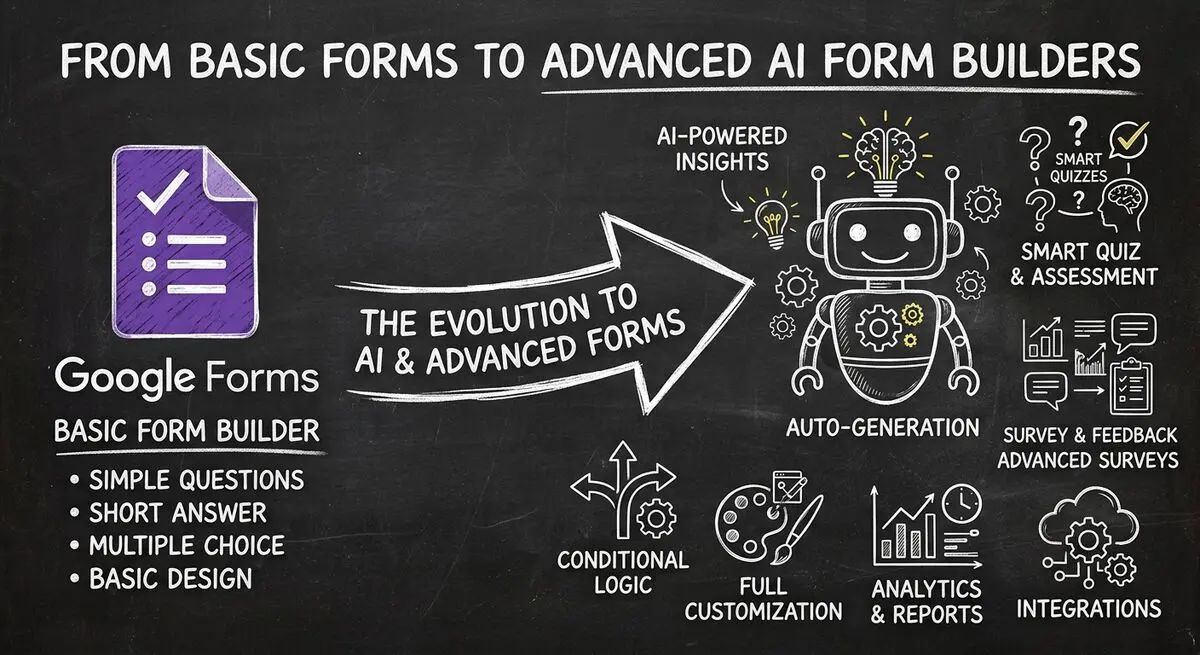
If you can't find the Send button, you're not alone — Google moved it in the 2026 Forms redesign. It's still there, just relocated to a different corner. Here's where to find it, plus everything else you need to share or close a form properly.
Below: 4 ways to share a Google Form (link, email, embed, QR code), how to close responses when you're done, and the limits that show up after a few hundred submissions — plus when an AI form is a better fit than Google Forms.
How to Share a Google Form: Step by Step
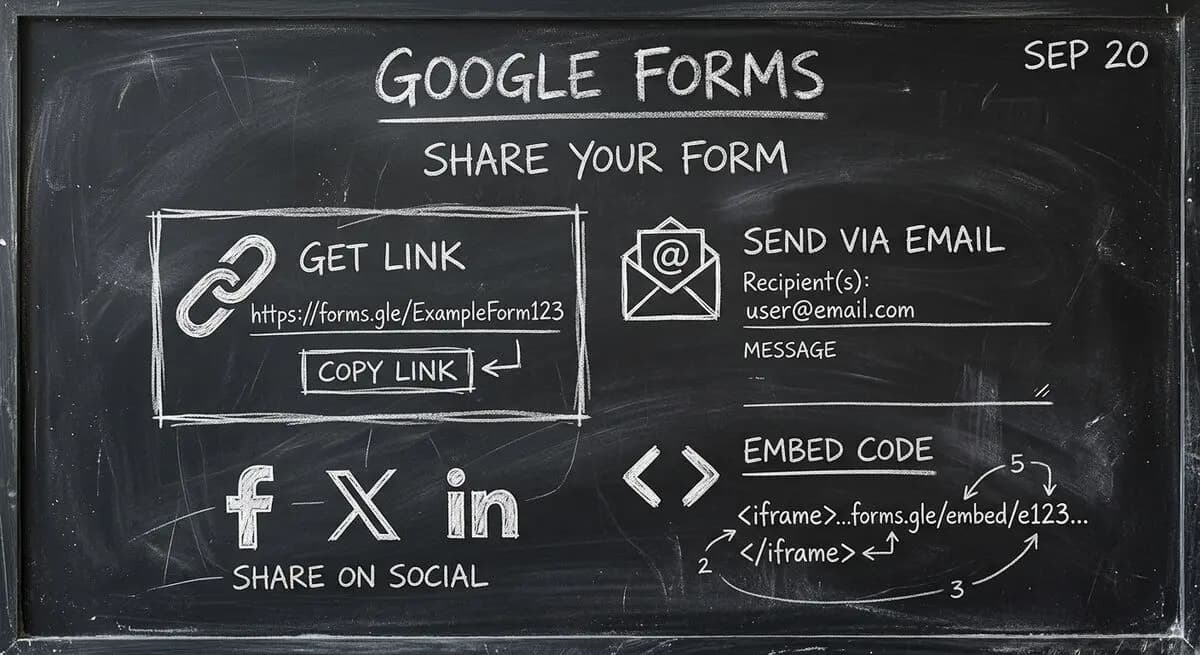
Method 1: Share via Link
The most common way to share a Google Form is through a shareable link. Here is how to do it:
- Open your Google Form in forms.google.com
- Click the Send button in the top right corner
- In the Send form dialog, make sure the Link tab is active
- Click the Copy link button next to the form URL
- Paste the link wherever you need it - email, social media, website
Google Forms automatically generates a short URL using forms.google.com or you can use the full Google Drive link.
Method 2: Share via Email
- In the Send dialog, click the Email tab
- Enter the email addresses of recipients
- Add a subject line and message body
- Click Send to distribute the form directly
Method 3: Embed on Website
To embed a Google Form on your website:
- Click Send in your form editor
- Select the Embed tab icon
- Click the Copy HTML iframe code button
- Paste the code into your website HTML
Method 4: Share on Social Media
- Copy your form link from the Send dialog
- Paste it into your social media posts
- Add a compelling call-to-action to encourage responses
How to Close a Google Form
When your data collection period ends, you need to know how to close a Google Form properly. Here are your options:
Option 1: Manually Accepting Responses
Google Forms does not have a built-in close date feature in the traditional sense. Instead:
- Go to your Google Form
- Click the Responses tab
- Toggle off the Accepting responses switch
- This will show respondents a 'This form is no longer accepting responses' message
Option 2: Set Response Limits
- Click the Settings tab in your form
- Toggle on Collect email addresses
- Set a response limit if available for your account type
- Once the limit is reached, the form automatically closes
Option 3: Use Google Forms Add-ons
- For more control, install add-ons like Form Publisher
- Set specific close dates and times
- Automate response handling when the form closes
Limitations of Google Forms Sharing
While Google Forms sharing works for basic needs, there are significant limitations for businesses:
- Limited branding options - you cannot customize the form appearance significantly
- No advanced response tracking - basic Sheets export only
- No automatic follow-up emails to respondents
- No response expiration scheduling without add-ons
- Limited to one form per response for email collection
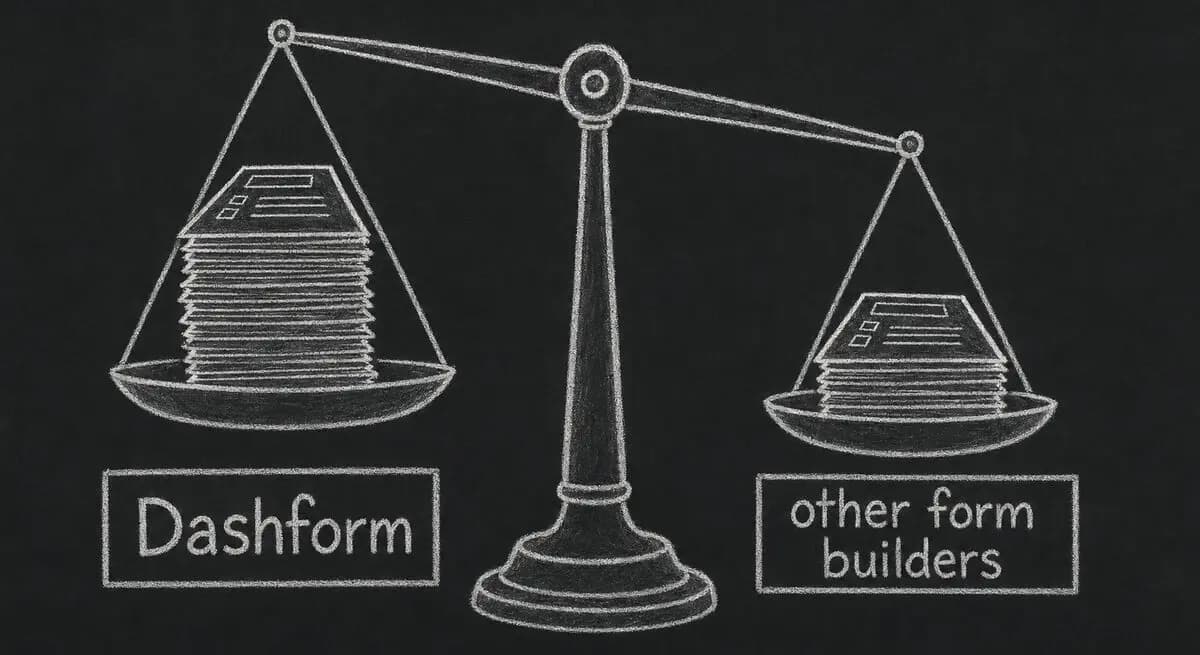
These limitations are why many businesses are exploring Dashform as a more powerful alternative.
Why Businesses Choose Dashform for Form Sharing
Dashform offers advanced sharing and response management features that Google Forms lacks:
- AI-generated forms - describe your form and AI builds it in seconds
- Advanced analytics - track response rates and user behavior
- Automated follow-ups - send personalized thank you emails automatically
- Quiz features - include scoring and lead qualification
- Full API access - integrate with your CRM and marketing tools
How to Share Forms with Dashform
With Dashform, sharing forms is more flexible:
- Generate shareable links with custom domains
- Embed forms with full branding control
- Set automatic response limits and expiration dates
- Track sharing performance with built-in analytics
- Send automated email sequences based on responses
Frequently Asked Questions
Can I set a close date for my Google Form?
Google Forms does not have a built-in close date feature. You need to manually toggle off accepting responses or use third-party add-ons. Some businesses use Google Calendar reminders to manually close forms at specific times.
How do I share a Google Form without showing the form owner email?
When sharing via email, recipients will see the form owner email address. To hide this, you would need to use a Google Workspace account with confidential mode or use a third-party form builder like Dashform that offers more privacy options.
Can I limit how many people can respond to my Google Form?
Google Forms does not have a built-in response limit for most account types. Only Google Workspace for Education offers some response quotas. For limiting responses, you would need to use third-party add-ons.
What happens when I close a Google Form?
When you toggle off accepting responses, anyone clicking the form link will see a message saying the form is no longer accepting responses. Existing responses in Google Sheets are preserved.
Can I reopen a closed Google Form?
Yes, simply go back to the Responses tab and toggle on Accepting responses to reopen the form. All previous responses will remain intact.
Conclusion: Choose the Right Tool for Your Needs
Google Forms is perfectly adequate for simple form sharing needs. If you only need basic link or email sharing for internal surveys or quick data collection, Google Forms does the job.
However, if you need better response rates, professional branding, automated follow-ups, and advanced sharing controls, Dashform offers a significantly more powerful solution. The AI-powered form creation alone can save hours of setup time, and the advanced sharing features help you convert more respondents into leads.
Ready to try a more powerful form solution? Start for free and see the difference AI-powered forms can make.