

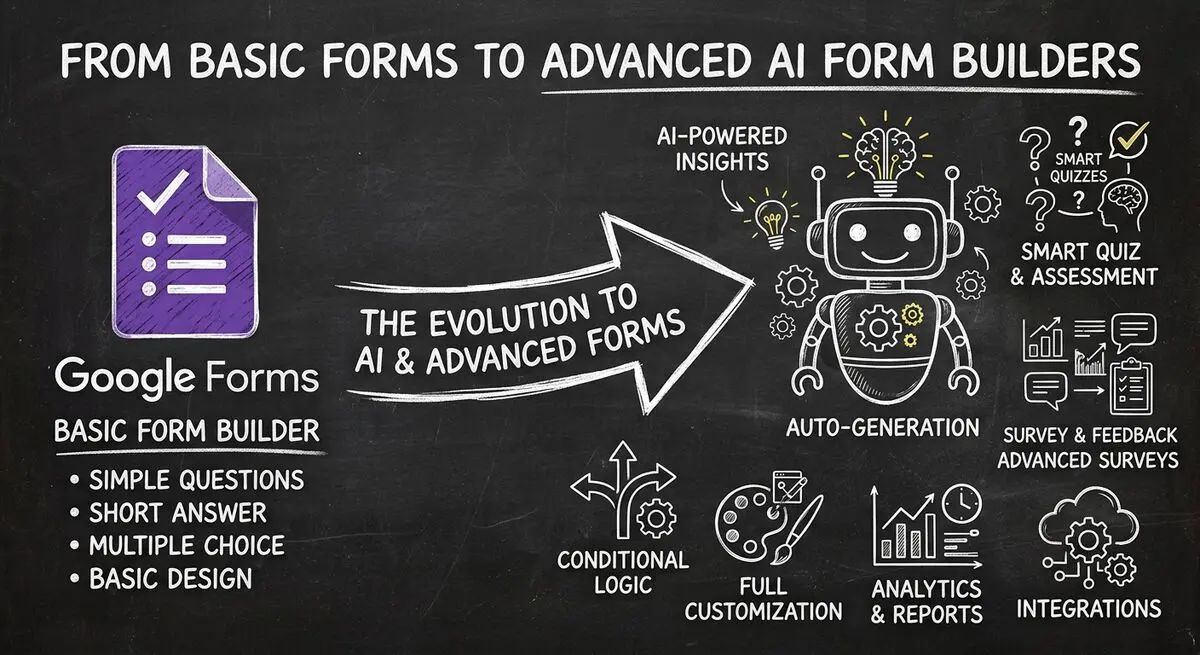
Google Forms responses live in two places: the Responses tab inside the form itself, and a linked Google Sheet that updates as new submissions come in. Knowing which view to use depends on what you're trying to do.
Below: 4 ways to view, filter, and export Google Form responses (including the new 2026 email-notification toggle and the response API), the response limits to watch out for, and when an AI form gives you better insights than the built-in summary view.
How to See Google Form Responses in Google Sheets
Method 1: View Responses in Google Forms
The simplest way to see responses is directly in Google Forms:
- Open your Google Form at forms.google.com
- Click the Responses tab at the top of the form
- You will see a summary with response counts and simple charts
- Click on Individual responses to see each submission
- Use the arrow keys to navigate between responses
Method 2: Link to Google Sheets
For more powerful analysis, connect your form to Google Sheets:
- Click the Responses tab in your form
- Click the green Sheets icon that says Link to Sheets
- Choose Create a new spreadsheet or Select existing one
- Click Create or Select to confirm
- All responses will now sync automatically to the linked Sheet
Method 3: Access Google Sheets Directly
If you have already linked a spreadsheet:
- Go to your Google Drive
- Find the spreadsheet linked to your form
- Open it to see all responses in tabular format
- Use Sheets features like filters, formulas, and charts
Understanding the Responses Tab
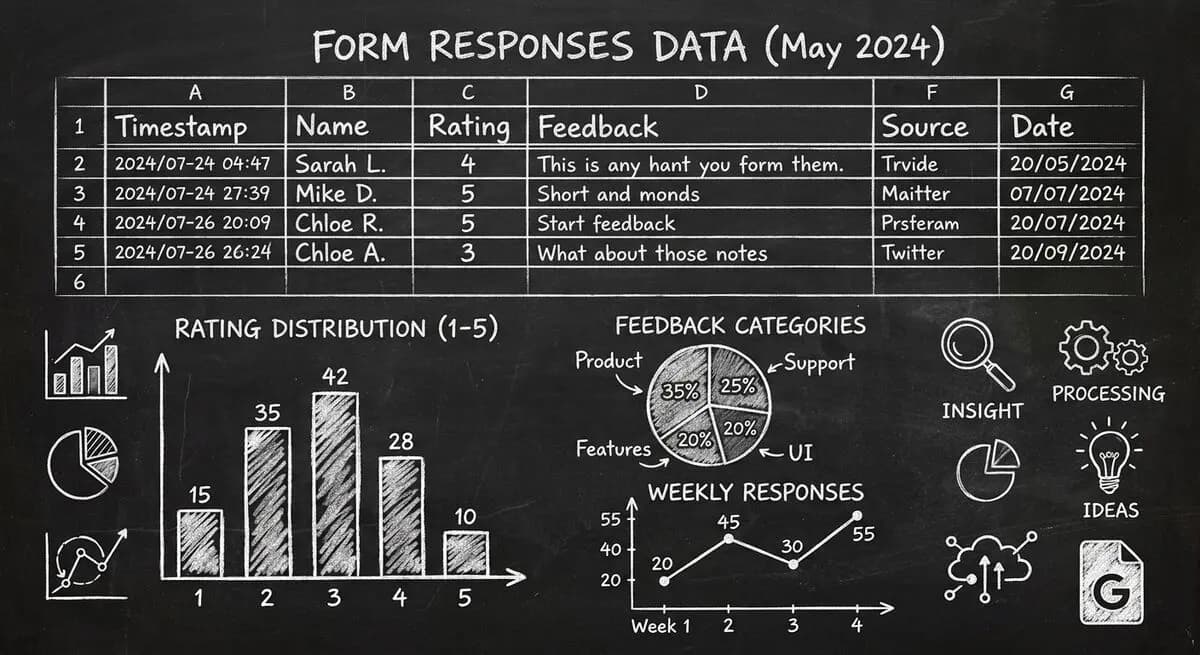
The Responses tab in Google Forms provides basic insights:
- Total response count
- Average completion time
- Simple bar charts for multiple choice questions
- Link to Google Sheets for detailed analysis
Limitations of Google Forms Responses
While Google Forms provides basic response viewing, there are significant limitations:
- Limited visualization - only basic bar charts
- No advanced filtering or segmentation
- No automated alerts for new responses
- Manual export required for most analysis
- No built-in analytics dashboard
- Cannot track who viewed but did not submit
These limitations drive many businesses to Dashform for better response insights.
Why Dashform Provides Better Response Insights
Dashform offers advanced response analytics that Google Forms cannot match:
- Real-time analytics dashboard - see response trends as they happen
- Response segmentation - filter by user characteristics
- Lead scoring - automatically score and prioritize leads
- Quiz analytics - detailed quiz performance metrics
- API integrations - connect to your analytics stack
How to Export Google Form Responses
For external analysis, export your responses:
- Click the Responses tab in your form
- Click the three dots menu icon in the top right
- Select Download responses as CSV
- Open the CSV in Excel or any analytics tool
Frequently Asked Questions
Can I see who viewed my Google Form but did not submit?
Google Forms does not provide built-in tracking for form viewers. You would need to use Google Analytics with custom events or a third-party form builder with view tracking capabilities.
How do I get email notifications for new responses?
Google Forms does not have native email notifications. You can set up notifications through Google Sheets using Add-ons like Email Notifications for Forms, or check responses manually.
Can I view responses after closing the form?
Yes, all responses are preserved in Google Sheets even after you close the form. You can access them by opening the linked spreadsheet or downloading the CSV.
How do I filter responses in Google Forms?
Google Forms does not have built-in filtering. You need to open the linked Google Sheets and use Sheets filtering features to segment your data.
Can I see response timestamps in Google Forms?
Each response in Google Forms includes a timestamp showing when it was submitted. This is visible in both the individual responses view and in the linked Google Sheets.
Conclusion: Choose the Right Tool for Your Needs
Google Forms provides adequate response viewing for basic needs. If you only need to check occasional submissions and export to Sheets for analysis, Google Forms works fine.
However, for businesses that need real-time insights, automated alerts, lead scoring, and advanced analytics, Dashform delivers significantly more value. The difference is especially noticeable when you need to act quickly on responses or analyze patterns over time.
Want better response insights? Try Dashform free and see your data in a completely new way.