
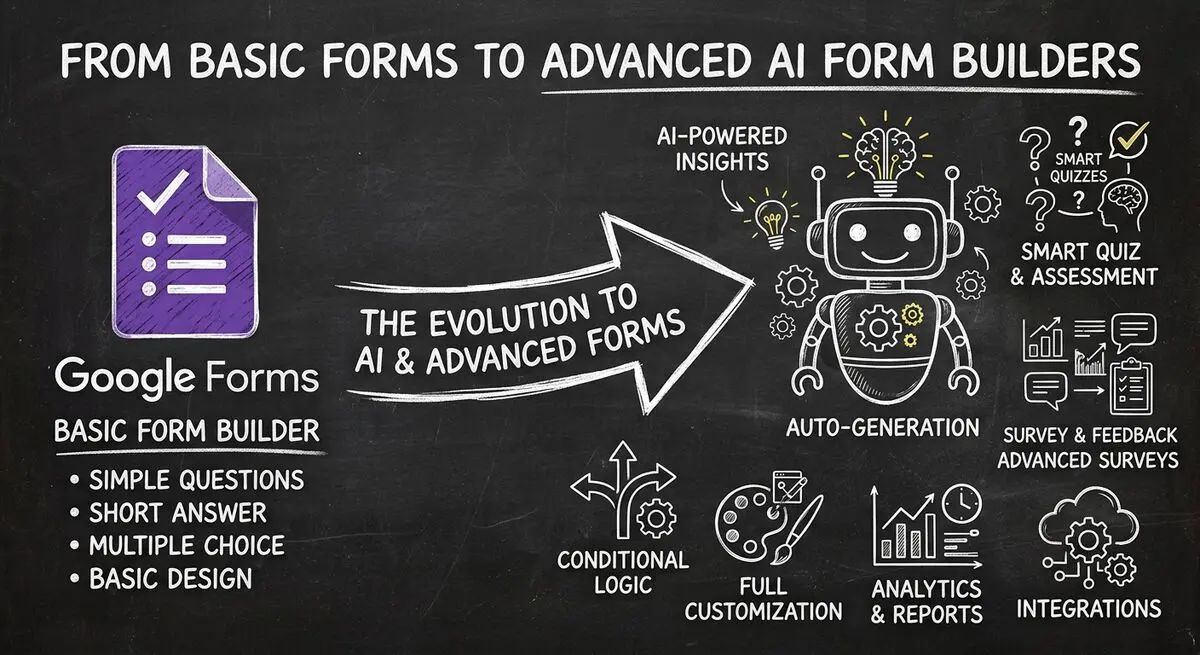
Google Forms has a built-in quiz mode that turns any form into a graded assessment with correct answers, point values, and automatic feedback. Most people miss it because it's tucked inside the Settings tab — and the 2026 redesign moved the toggle.
Below: step-by-step quiz creation, how the new 2026 question types work, and where Google Forms hits its limits — plus when an AI quiz generator gives you a better outcome than Forms can.
How to Make a Google Form Quiz
Step 1: Enable Quiz Mode
Start by turning on quiz mode in your Google Form:
- Go to forms.google.com and create a new form or open existing
- Click the Settings tab (gear icon) on the right
- Scroll down to the Quiz section
- Toggle on Make this a quiz
- Now your form is in quiz mode
Step 2: Add Questions and Answers
Now add questions and designate correct answers:
- Add your first question using the question types
- Click the Answer key button on the right side of the question
- Select the correct answer(s)
- Add point values for each question
- Click Save to lock in the answer key
- Repeat for all questions
Step 3: Add Feedback
Enhance the quiz with immediate feedback:
- After setting the answer key, click Add feedback
- Enter feedback for correct answers
- Enter feedback for incorrect answers
- This feedback appears after each submission
Step 4: Configure Quiz Settings
- In Settings, set whether respondents can see
- Correct answers - immediately, after quiz closes, or never
- Missed questions - show or hide
- Point values - include in feedback or hide
Google Forms Quiz Features
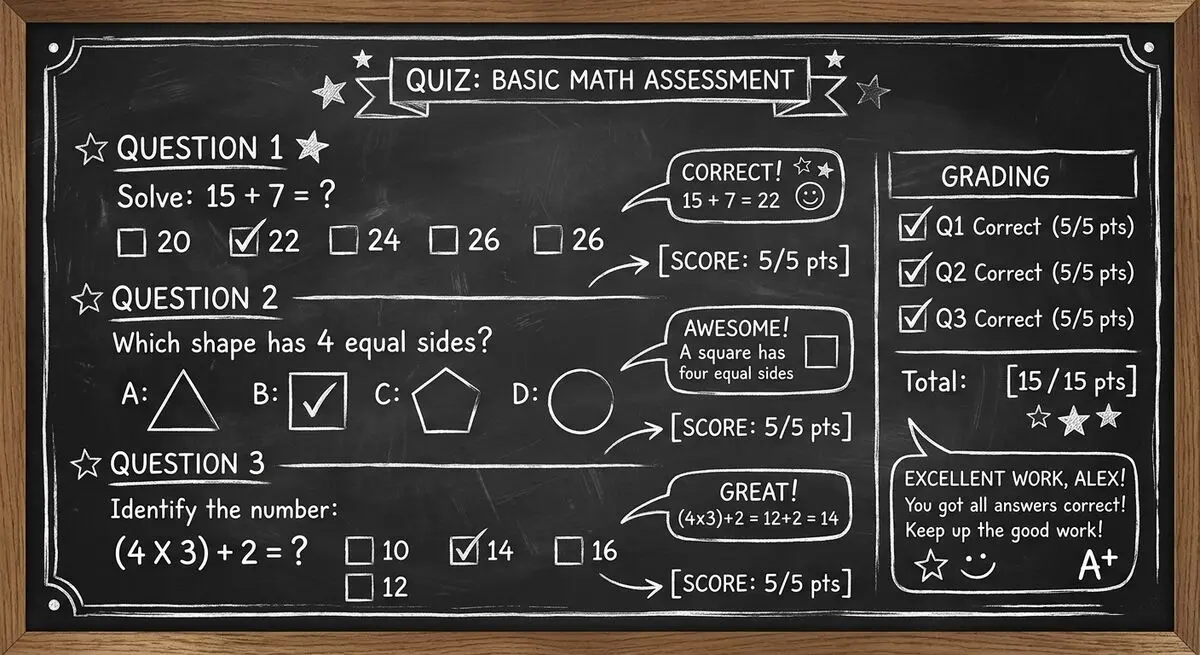
Google Forms quiz mode includes:
- Multiple choice and checkbox question support
- Point values for each question (up to 100 points per question)
- Automatic grading upon submission
- Immediate feedback for correct and incorrect answers
- Score summary shown to respondent after completion
- Grades synced to Google Sheets for teacher review
Limitations of Google Forms Quizzes
While Google Forms quizzes work for basic needs, they have significant limitations:
- Limited question types - only multiple choice, checkbox, and dropdown
- No question banking or randomization
- Basic feedback - cannot include images or rich media
- No time limits per question or overall
- No advanced analytics or performance trends
- No lead qualification or scoring for business use
- Cannot create personality quizzes or recommendation engines
These limitations are why educators and businesses are turning to Dashform for more powerful quiz experiences.
Why Choose Dashform for Quizzes
Dashform offers quiz capabilities far beyond Google Forms:
- AI quiz generation - describe your quiz topic and AI builds it instantly
- Personality quizzes - create engaging quizzes with result profiles
- Product recommendations - recommend products based on quiz answers
- Advanced scoring - complex scoring logic with weighted questions
- Detailed analytics - track completion rates, time spent, score trends
- Lead qualification - use quiz scores to qualify business leads
Use Cases for Dashform Quizzes
Dashform quizzes work for many business applications:
- Lead generation - qualify prospects with assessment quizzes
- Employee training - onboard with knowledge checks
- Customer assessment - evaluate customer needs for recommendations
- Product matching - recommend products based on preferences
- Personality quizzes - engage website visitors with shareable results
Frequently Asked Questions
Can I add images to Google Forms quiz questions?
Yes, you can add images to questions in Google Forms. Click the image icon in the question editor and select an image from Google Drive or upload from your computer.
Can I set a time limit for a Google Forms quiz?
Google Forms does not have a built-in time limit feature. For quizzes requiring time limits, you would need to use a third-party add-on or choose a quiz platform with this feature.
Can students see their grades immediately after submitting?
Yes, after you enable quiz mode and configure settings, respondents will see their score and feedback immediately upon submitting. You can control this in the Quiz settings.
Can I export quiz grades to a grade book?
Yes, quiz grades sync to the linked Google Sheets. You can also use the Google Classroom integration to import grades directly into Google Classroom if you are using it with students.
How do I shuffle questions in Google Forms?
Google Forms does not have automatic question shuffling. However, you can manually reorder questions by clicking and dragging. For automatic randomization, you would need a different quiz platform.
Conclusion: Choose the Right Quiz Tool
Google Forms quizzes work well for simple classroom assessments and basic knowledge checks. If your quiz needs are straightforward, Google Forms provides adequate functionality at no cost.
However, for businesses that need lead qualification, product recommendations, or advanced analytics - or educators wanting richer quiz experiences - Dashform delivers significantly more power. The AI quiz generation alone can create professional quizzes in seconds versus hours of manual setup.
Ready to build better quizzes? Start for free and see what AI-powered quizzes can do.