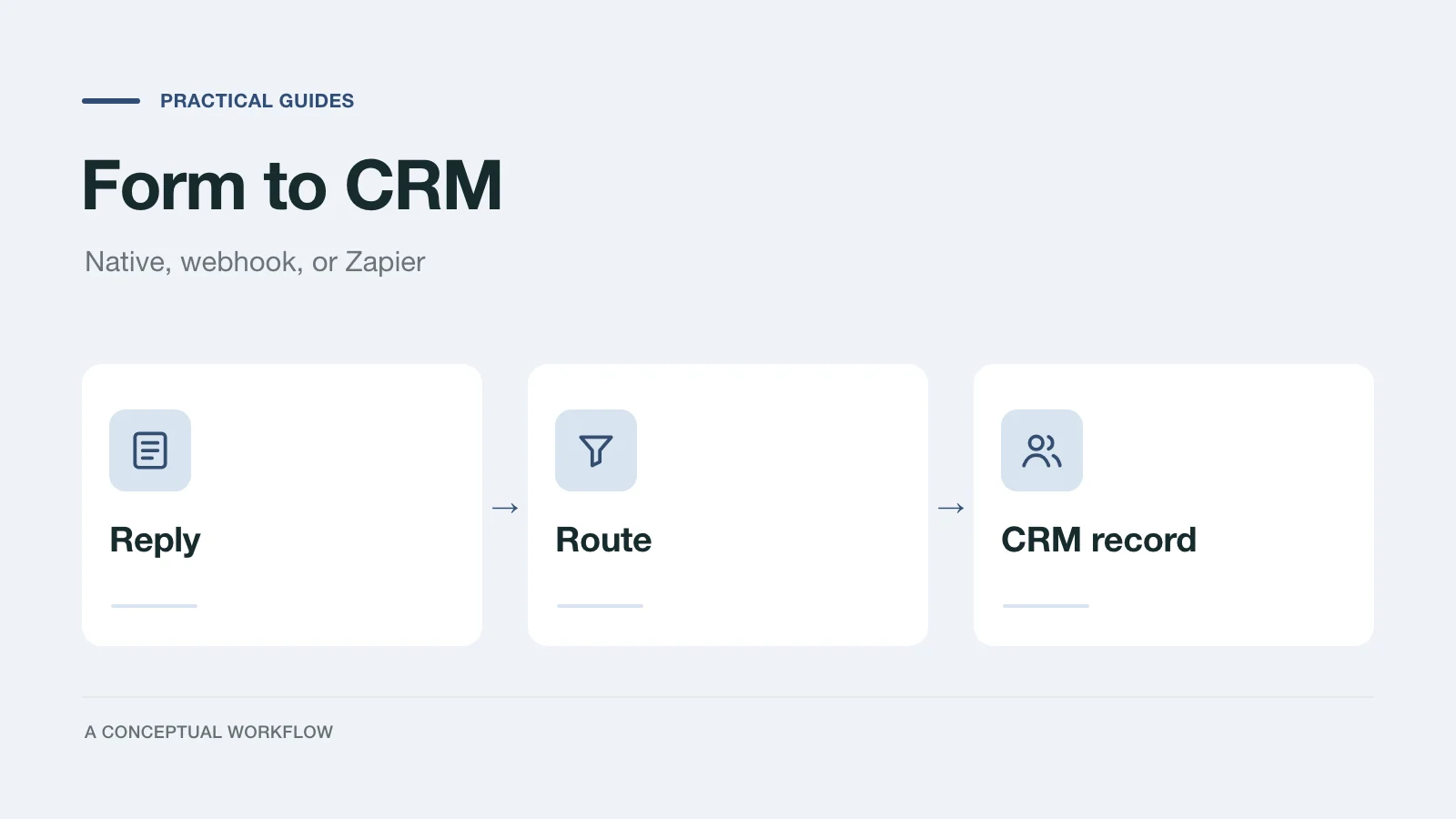
A form that doesn't reach the CRM creates a second inbox. Someone has to copy each inquiry across, and the ones that arrive on a Friday afternoon wait until Monday or never get copied at all. Getting submissions into the CRM automatically is the fix, but the route you pick decides what happens on the bad days: when a field is renamed, when a delivery fails, when the same person submits twice.
There are three common routes: a native destination built into the form tool, a webhook to the CRM's API or to an automation layer, and Zapier. This post compares them in one decision table, then works through two of them in full with HubSpot as the CRM.
The examples are fictional. Facts about HubSpot and Zapier come from their own docs, linked and checked on November 18, 2026. Facts about Dashform come from its docs and product source on the same date.
The decision table
| Route | Setup effort | What breaks | How duplicates are handled | Choose it when |
|---|---|---|---|---|
| Native destination (Dashform to HubSpot) | Connect the account, map answers to contact properties. No code | A mapped HubSpot property is deleted or rejects a value; the connection is revoked | The contact is created or updated by email, so a retry or a second submission updates one contact | HubSpot is your CRM and a contact with mapped properties is what you need |
| Webhook to the CRM's API or automation layer | You run an endpoint (your server, a serverless function, or n8n) and write the CRM calls | Your endpoint is down, your code throws, the CRM's API changes or rate-limits you | Yours to build: dedupe on the delivery's idempotency key and upsert on a unique property | You need deals, companies, or custom objects, a CRM without a native destination, or full control |
| Zapier | Build a Zap: Dashform trigger, CRM action. No code | A Zap step errors, the connected account expires, a question the Zap uses is removed from the form | Depends on the action you pick; a "create or update" action updates, a plain "create" action makes another record | Your CRM has a Zapier app and you want a multi-step flow without hosting anything |
Two things the table can't show. First, Dashform has one native CRM destination today, HubSpot. For any other CRM (Salesforce, Pipedrive, GoHighLevel, and the rest), the route is a webhook or Zapier; Dashform doesn't integrate with them natively. Second, all three routes start from the same reply, so you can mix them: the native HubSpot destination for the contact, plus a webhook for the deal.
Route 1: a native destination
Dashform's HubSpot destination has one action, Create or update a contact. Here is what it does, from the product source:
- It runs for each completed reply that passes the destination's routing condition, if you set one.
- You map form answers, and reply details such as Respondent email, Reply ID, Completed at, Ending, and Source, to HubSpot contact properties. The property list is read from your HubSpot account, minus hidden and read-only properties.
- One answer must be mapped to Email. Dashform creates the contact; if HubSpot reports a contact with that email already exists, Dashform updates that contact instead.
- An empty answer isn't sent, so it doesn't blank out a value already on the contact.
- It doesn't create deals, companies, tasks, or notes, and it sends no email. HubSpot workflows can act on the contact once it exists.
On the HubSpot side, its contacts API guide calls email "the primary unique identifier to avoid duplicate contacts," and its deduplication article says HubSpot automatically deduplicates contacts by email and companies by domain. Deals aren't in that automatic list.
What breaks: if a mapped property is deleted in HubSpot or HubSpot refuses a value, the delivery fails and the destination pauses until you fix the mapping. A reply with no email answer fails for that reply. Failed deliveries show in the destination's Delivery log with a Replay button.
Native destinations are on the Pro and Business plans (pricing, checked November 18, 2026).
Route 2: a webhook to the CRM
With the Dashform Webhook destination, each completed reply is POSTed as JSON to your URL, with a stable replyId, an Idempotency-Key header that repeats on retries and replays, and an optional X-Dashform-Signature header. The form webhook checklist covers verifying that signature and deduplicating; the Dashform webhook docs have the full envelope.
This route is the most work and the most control: you decide which CRM objects to create and how to match existing records. It's also the route for any CRM without a native destination, through your own endpoint or an automation tool such as n8n. Our n8n guide builds that receiver step by step.
Route 3: Zapier
The Dashform app on Zapier (checked November 18, 2026) has one trigger, Reply Completed, and no actions. You pick a form, and the trigger offers the reply, its start and completion times, respondent name, email, and sentiment, the source, the ending, and one field per question on the form's live version. When the Zap is turned on, Zapier adds a matching destination to the form in Dashform, and removes it when the Zap is turned off. The Zapier app is listed on the Pro and Business plans.
On the CRM side you use that CRM's own Zapier app. For HubSpot, the HubSpot app on Zapier lists actions including Create Contact, Create or Update Contact, Create Deal, and Find or Create Deal. Pick the "create or update" or "find or create" versions when a duplicate record would hurt.
Zapier's task usage article says triggers never use tasks, a task is a successful action, and Filter and Paths steps don't count. Check your Zapier plan's task allowance before you put a busy form on it.
Worked example 1: native HubSpot contact
A fictional two-person web studio uses a discovery form with questions keyed company, website, services, budget, and timeline, plus the respondent's name and email. They want every inquiry as a HubSpot contact with the budget and service visible, so their HubSpot workflow can assign an owner.
- In HubSpot, create two contact properties for the answers that don't fit a default property, for example "Inquiry budget" and "Services requested."
- In Dashform, open the form's Connect tab, choose HubSpot, and connect the HubSpot account.
- Choose the action Create or update a contact and map:
| Dashform answer or reply detail | HubSpot contact property |
|---|---|
| Respondent email | |
| Respondent name | First name (or split it in HubSpot) |
company | Company name |
website | Website URL |
budget | Inquiry budget |
services | Services requested |
| Reply ID | A text property such as "Dashform reply ID" |
- Optionally add a routing condition, for example
budgetequals "Under 5k" with Does not match ticked, if small inquiries should stay out of the CRM. - Submit the form yourself with a test email. Check that one contact appears in HubSpot with the mapped values, and that the Delivery log shows the delivery as Delivered.
- Submit again with the same email and a different budget. The same contact should update; no second contact should appear. Then delete the test contact and the test replies.
Worked example 2: webhook to a HubSpot deal
The same fictional studio now wants a deal for each inquiry, which the native destination doesn't create. They keep the native destination for the contact and add a Webhook destination that creates the deal.
The idea is to make the deal itself idempotent: give HubSpot a deal property with unique values, store Dashform's replyId in it, and upsert on it. A retry or replay then updates the same deal instead of creating another.
- Create a unique deal property. HubSpot's properties guide creates one with
POST /crm/v3/properties/dealsand"hasUniqueValue": true, and allows up to ten unique ID properties per object. Call itdashform_reply_id. - Receive the webhook. Verify
X-Dashform-Signatureand check theIdempotency-Keyas in the webhook checklist. Store the payload, answer 2xx, then do the CRM calls. - Upsert the contact by email with
POST /crm/v3/objects/contacts/batch/upsert,idPropertyemail. HubSpot's object API guide notes that partial upserts aren't supported when email is theidProperty. - Upsert the deal by the unique property with
POST /crm/v3/objects/0-3/batch/upsert(0-3is the deal object). HubSpot's deal batch upsert reference takes aninputsarray where each item has anid, an optionalidProperty, andproperties, and each result includes the dealidand anewflag:
{
  "inputs": [
    {
      "idProperty": "dashform_reply_id",
      "id": "5b8e1c2d-3f4a-4e6b-8c7d-9a0b1c2d3e4f",
      "properties": {
        "dashform_reply_id": "5b8e1c2d-3f4a-4e6b-8c7d-9a0b1c2d3e4f",
        "dealname": "Project discovery intake: Ada Lovelace",
        "dealstage": "<your stage ID>"
      }
    }
  ]
}- Associate the deal with the contact using the default association,
PUT /crm/v4/objects/deal/{dealId}/associations/default/contact/{contactId}, as in HubSpot's associations guide. The deal and contact IDs come from the two upsert responses. - Handle HubSpot's errors. A
429means you're over HubSpot's rate limits; retry later from your queue. HubSpot's object guide also lists a423 Lockedduring large syncs and suggests waiting at least two seconds between requests.
HubSpot's docs use internal IDs for pipelines and stages, not display names, and use the default pipeline when none is given, so look the stage ID up once and keep it in configuration. We wrote these calls from HubSpot's reference pages and haven't run them against a live HubSpot account for this post; test them on a sandbox or test portal before relying on them.
Pick one and test the bad day
Whichever route you pick, run the same three tests before going live: submit twice with the same email, rename a question in the form, and turn the receiving side off for an hour and then replay. Watch what each route does. The route you can debug on your own is usually the right one.
For what to ask on the form before any of this fires, see the project discovery form. To set up the destinations, open your form's Connect tab, or start from the agency solutions page.